
ProfitSync Documentation
Profit, COGS & Expense Tracker documentation
Requirements
- WordPress 6.5 or later
- WooCommerce 9.5 or later, installed and active
- PHP 7.4 or later
Installation
- Upload the profitsync folder to /wp-content/plugins/, or install it directly from Plugins > Add New if you purchased ProfitSync through the WooCommerce Marketplace.
- Activate the plugin through the WordPress Plugins screen.
- Go to WooCommerce > ProfitSync. WooCommerce must already be active. If it isn't, ProfitSync shows an admin notice with a one-click Install or Activate link.
- On first activation, ProfitSync automatically enables WooCommerce's native Cost of Goods Sold feature, so cost tracking works immediately with no extra step.
Dashboard
The Dashboard tab is the default screen and gives you an at-a-glance view of store profitability.
- Net Profit, Revenue, Total Costs, and Profit Margin cards, each compared against the previous period.
- A Revenue vs Profit trend chart, switchable between 7 Days, 30 Days, 90 Days, and Year to Date.
- A Cost Breakdown donut chart showing COGS, Shipping, Gateway Fees, and Expenses as a share of total cost.
- A date range selector, a Refresh button to recalculate on demand, an Export shortcut, and a notification bell.
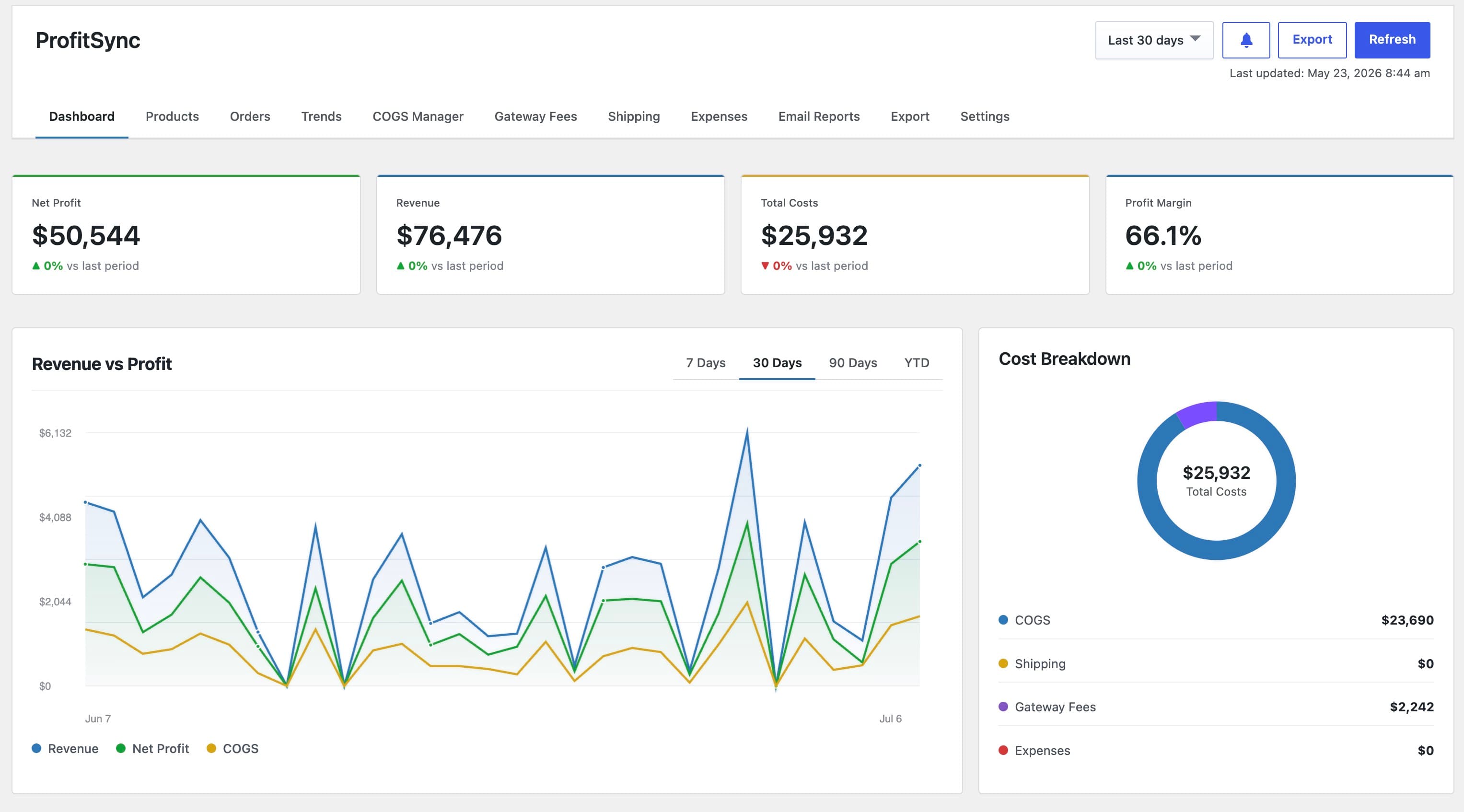
Dashboard tab with KPI cards and the Revenue vs Profit chart.
Settings
The Settings tab controls global defaults for currency, fees, and reporting behavior. Changes save instantly, with no page reload required.
- Currency: the currency used to display all profit and cost figures.
- Rounding Decimals: how many decimal places are used in dashboard totals (0 to 4).
- Refund Calculation: choose whether refunded orders are ignored, deducted from the order total, or deducted at the line-item level.
- Included Order Statuses: only orders in the statuses you select here count toward revenue and profit.
- Enable WooCommerce Analytics profit columns: turns on the Cost of Goods and Profit columns inside WooCommerce Analytics.
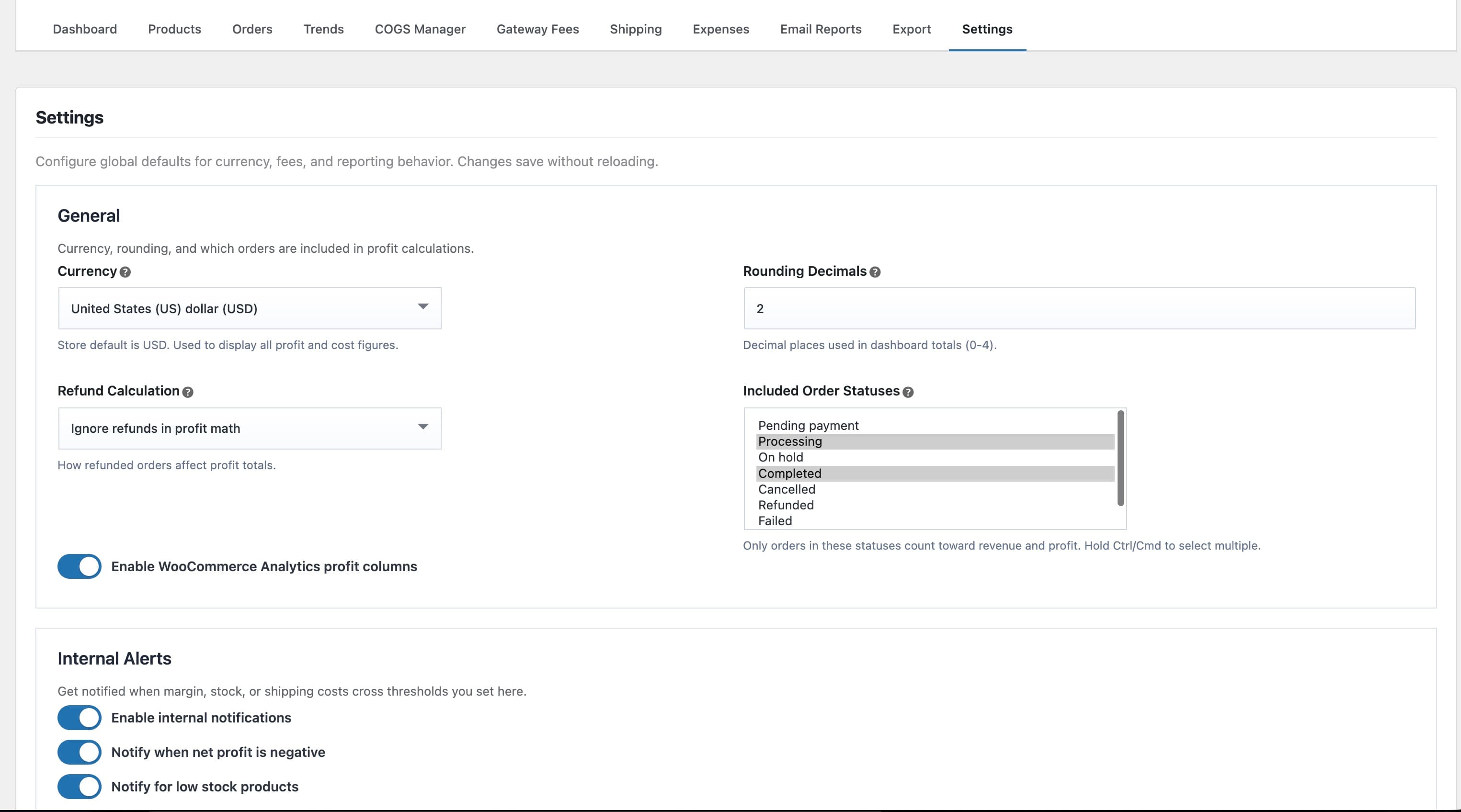
The Settings tab: General and Internal Alerts sections.
COGS Manager
The COGS Manager is where you set what each product actually costs you. ProfitSync writes this value to WooCommerce's native Cost of Goods field.
Manually: search by product title or SKU, then edit Cost, Mode, and Percent directly in the table. Modes are Fixed (a flat cost), Percent (a percentage of price), or Inherited (from the parent product, for variations).
Automatically: apply a formula across many products at once, scoped by category, tag, attribute, keyword, or stock status. Save any setup as a reusable preset.
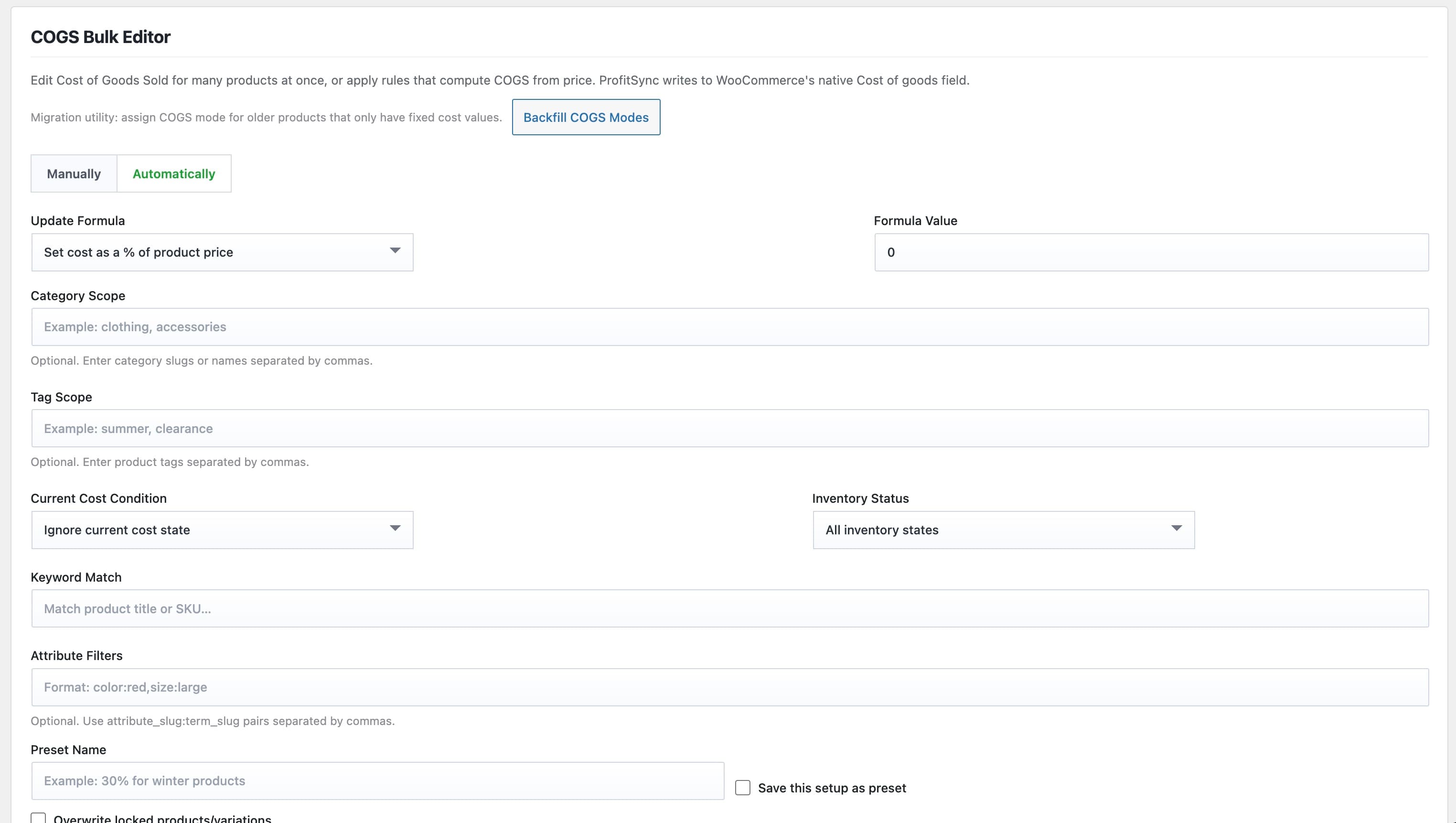
COGS Manager, Automatically tab.
Products
The Products tab lists price, cost, and margin for every product side by side. Search by product title, and sort by margin, price, or cost.
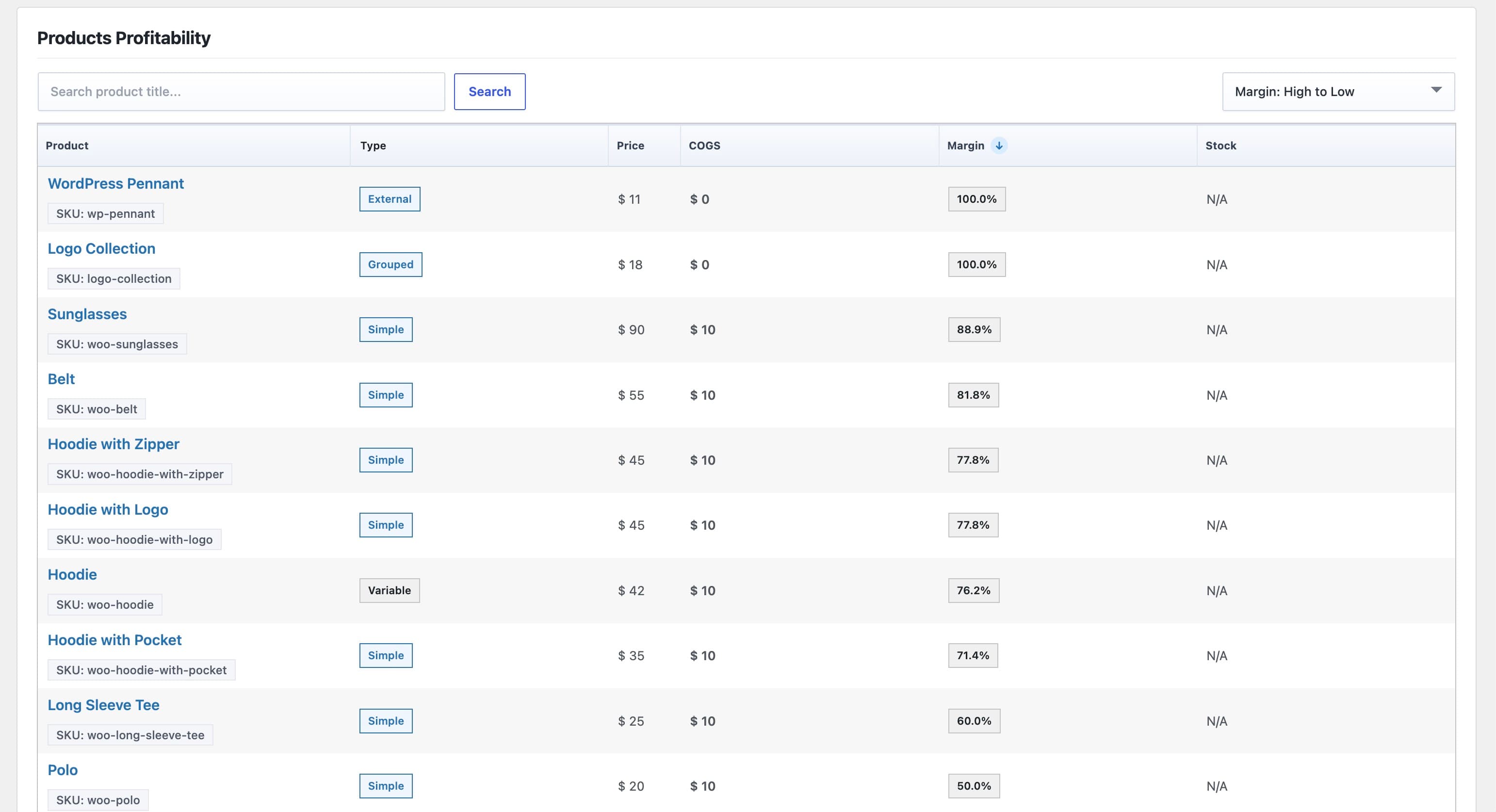
Products Profitability table, sorted by margin.
Orders
The Orders tab shows order count, total revenue, average order value, net profit, and average margin for the current filter, followed by a searchable, sortable order-level profit table.
Use Apply Costs to Past Orders whenever you change a cost rule, gateway fee, or shipping rule, to recalculate historical orders so they reflect the new rule.
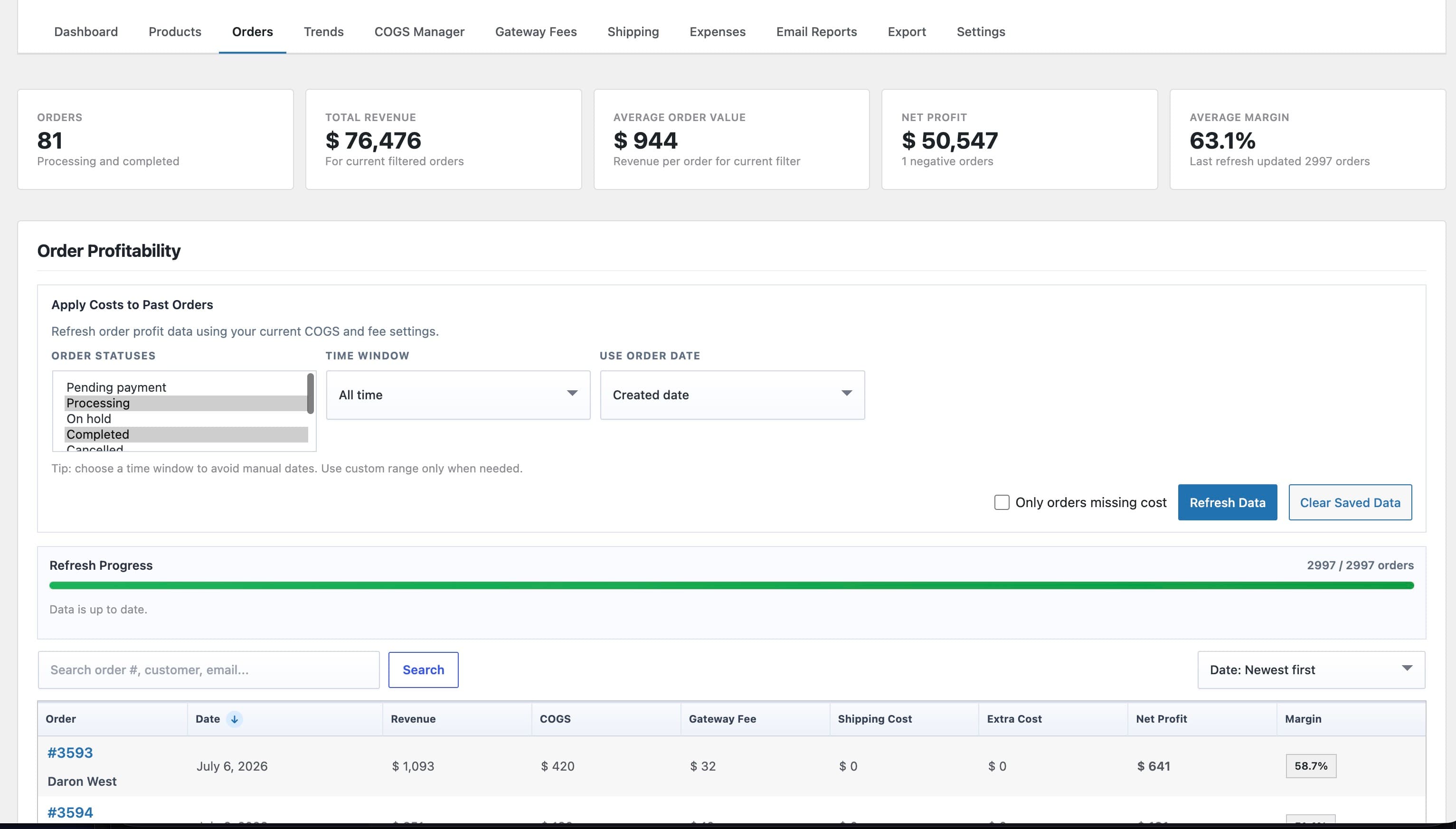
Orders tab: KPIs and the Apply Costs to Past Orders panel.
Trends
The Trends tab turns your order history into a story: best day, lowest day, trend change over the period, and average daily profit, alongside a margin-distribution breakdown.
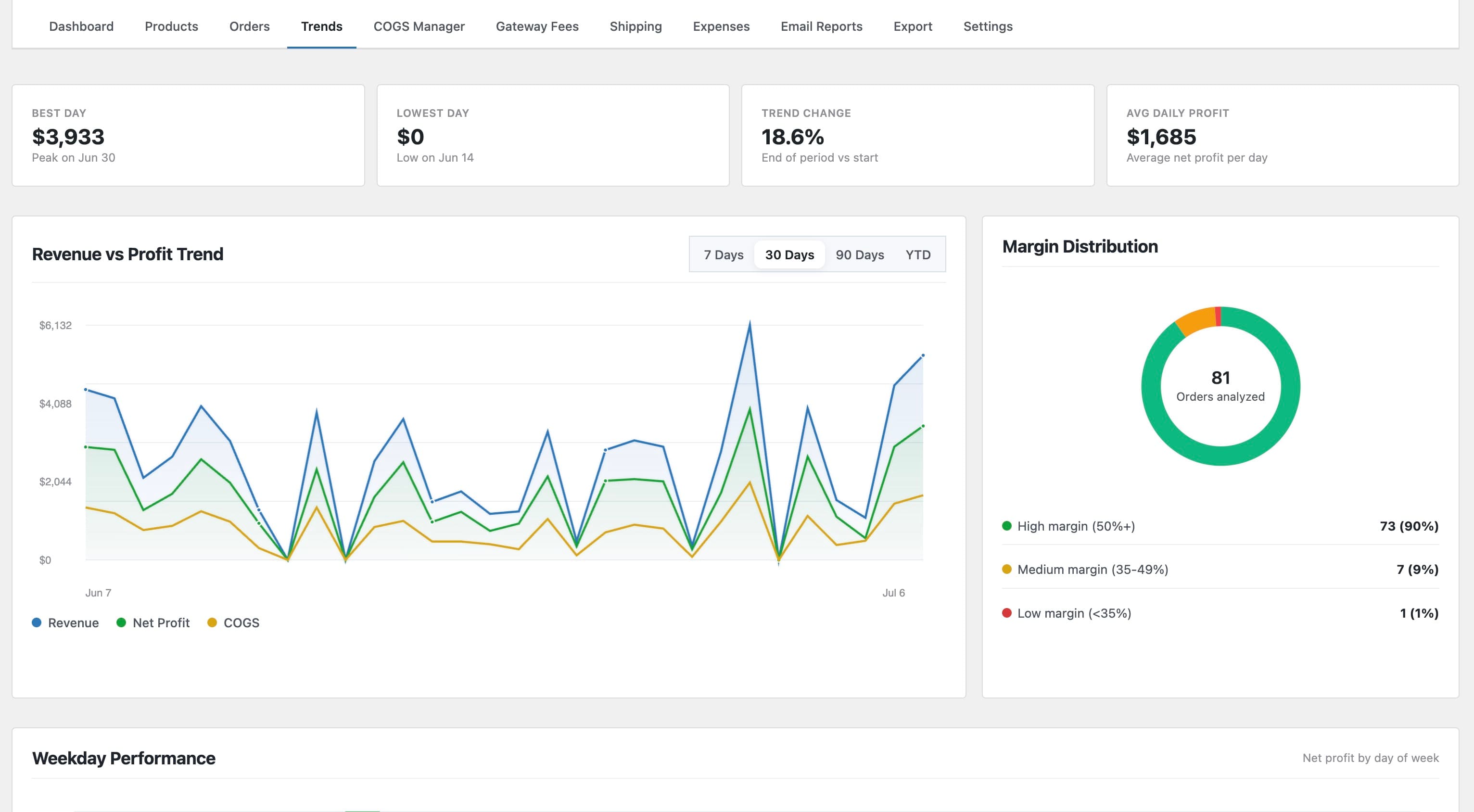
Trends tab: Revenue vs Profit Trend and Margin Distribution.
Gateway Fees
The Gateway Fees tab pulls your payment gateway list directly from WooCommerce and lets you set a Fixed Fee and a Percent Fee for each one. Rules apply to both enabled and disabled gateways.
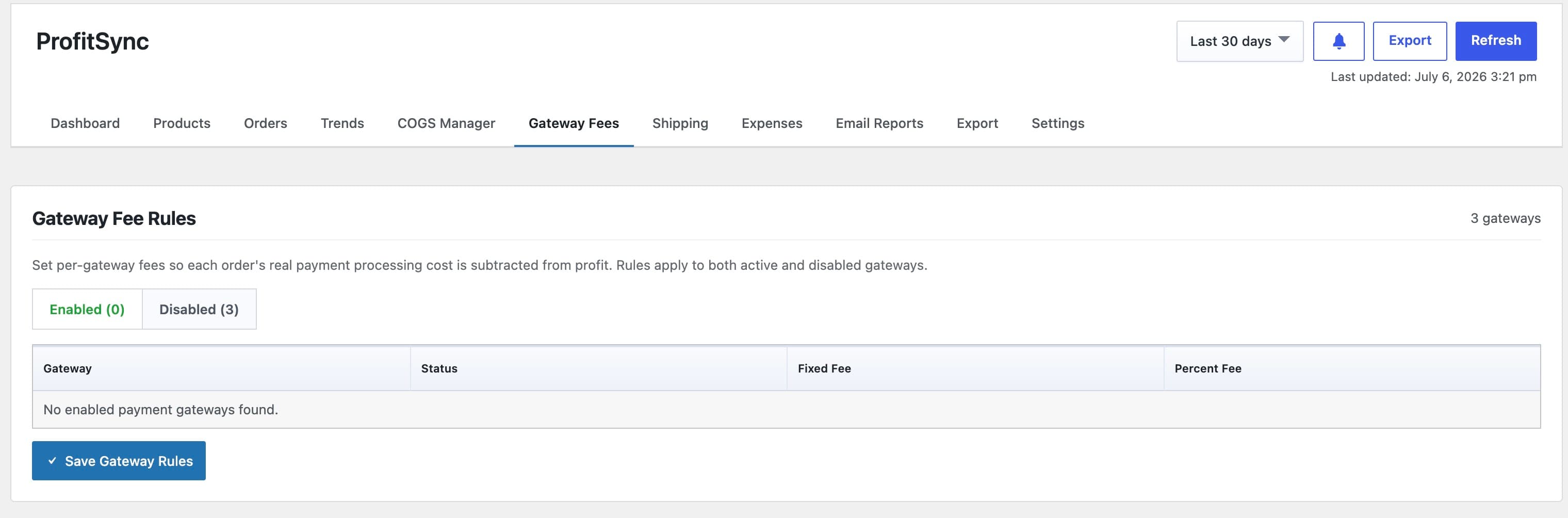
Gateway Fee Rules, Enabled tab.
Shipping
- Shipping Cost Rules: a Fixed Cost and Percent of Shipping Line value per shipping method.
- Shipping Class Cost Rules: an additional per-item Fixed Cost and Percent of Line Total overhead by product shipping class.
- Currency-Based Extra Costs: further adjustments for orders placed in a specific currency.
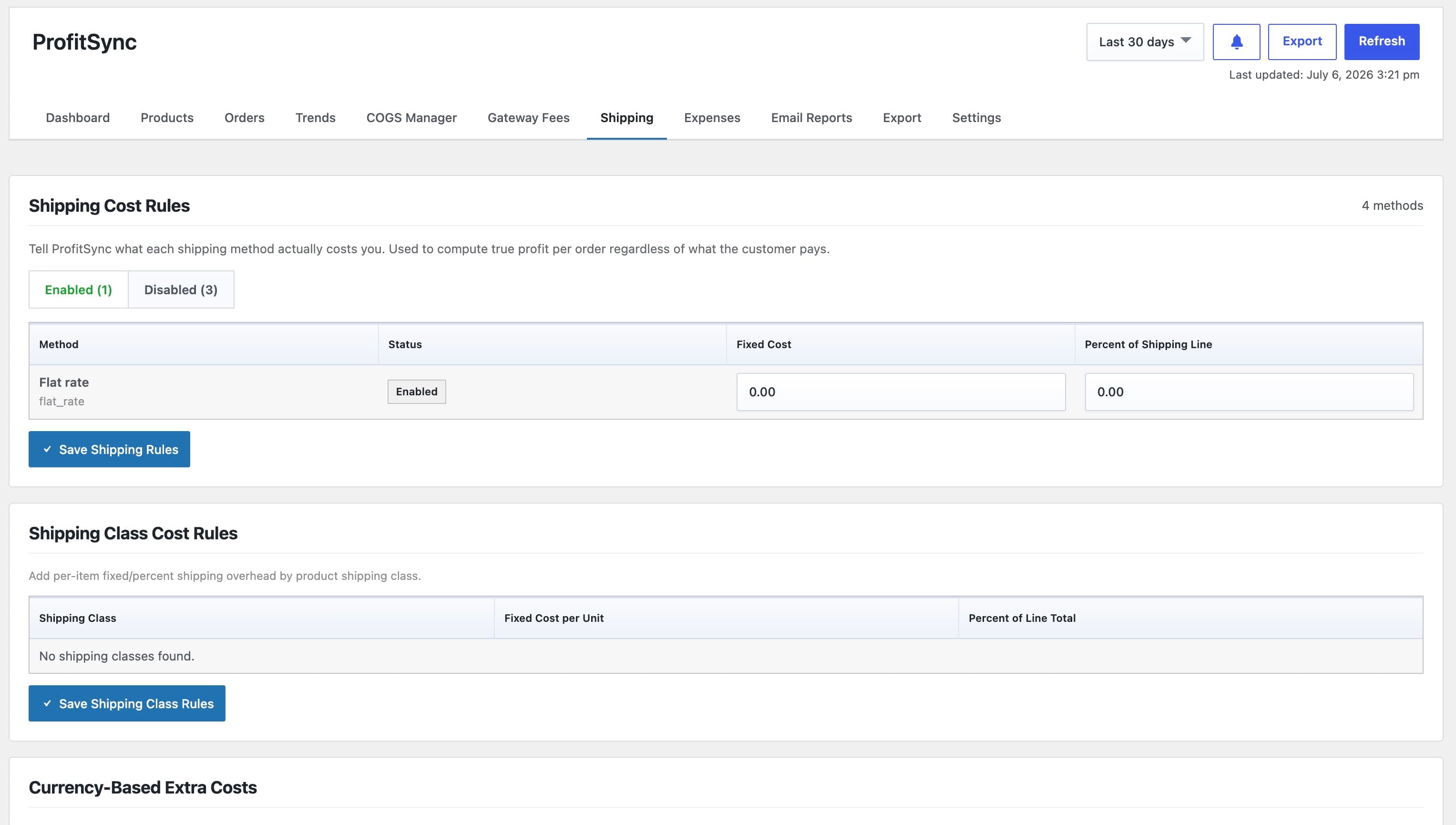
Shipping Cost Rules and Shipping Class Cost Rules.
Expenses
The Expenses tab is a dedicated ledger for costs that do not belong to any single product, such as rent, software subscriptions, or ad spend.
- Add an expense with a Name, Amount, Frequency (One Time, Daily, Weekly, Monthly, or Yearly), a Start Date, and optional Notes.
- Recurring expenses are automatically prorated into whatever date range you are viewing on the Dashboard, Orders, and Trends tabs.
Email Reports
Schedule recurring profit summaries straight to an inbox, without anyone needing to log in to WordPress.
- Daily Profit Summary, Weekly Performance Report, and Monthly P&L Snapshot, each toggled on or off independently.
- An Email Preview panel shows exactly what the email will contain before you turn a schedule on.
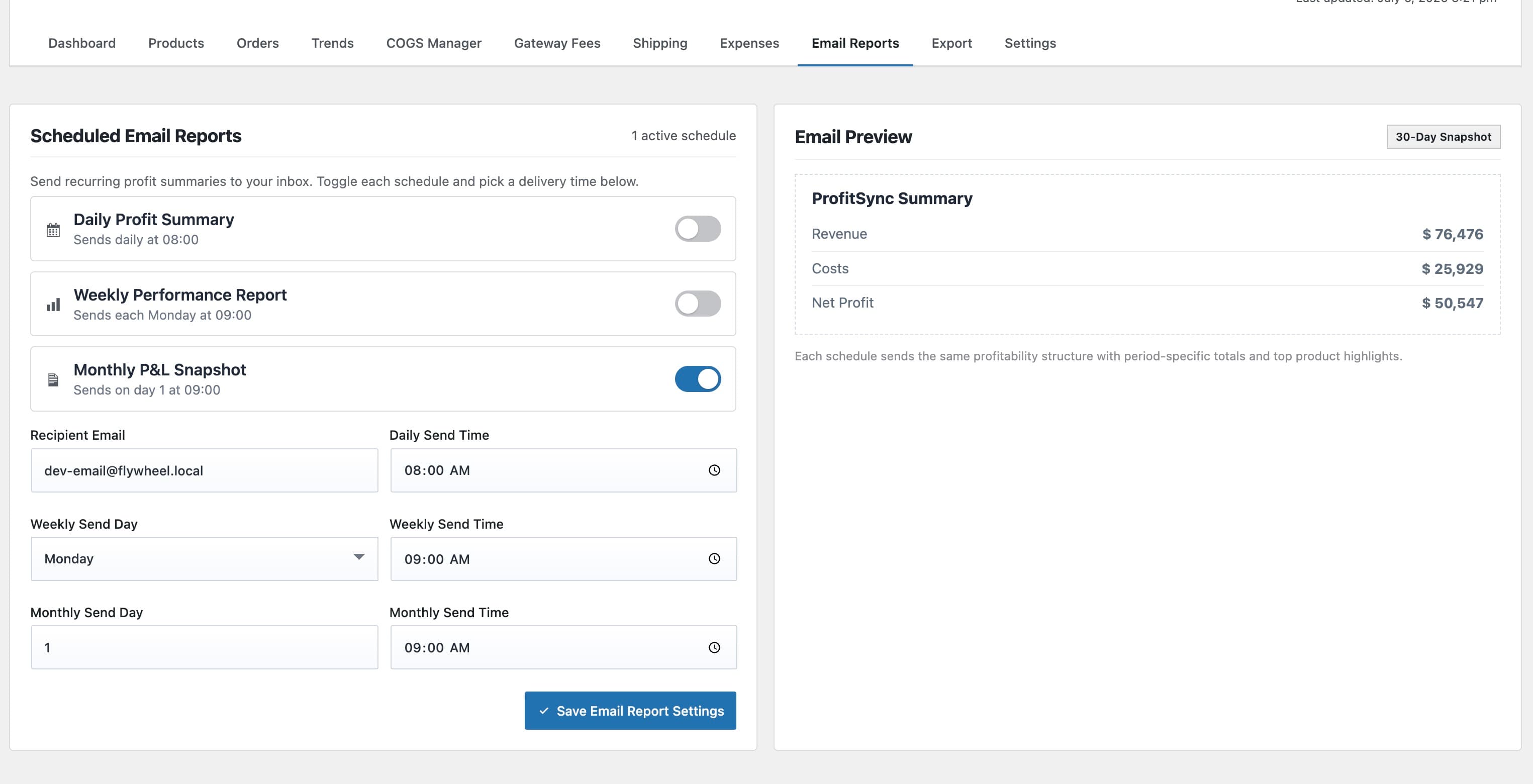
Email Reports tab: schedules on the left, live preview on the right.
Export Center
- CSV exports for Product COGS, Products Profitability, Orders Profitability, Expense Ledger, Gateway Fee Rules, and Shipping Cost Rules.
- Print-ready PDF reports for the Dashboard Summary, Orders, and Products.
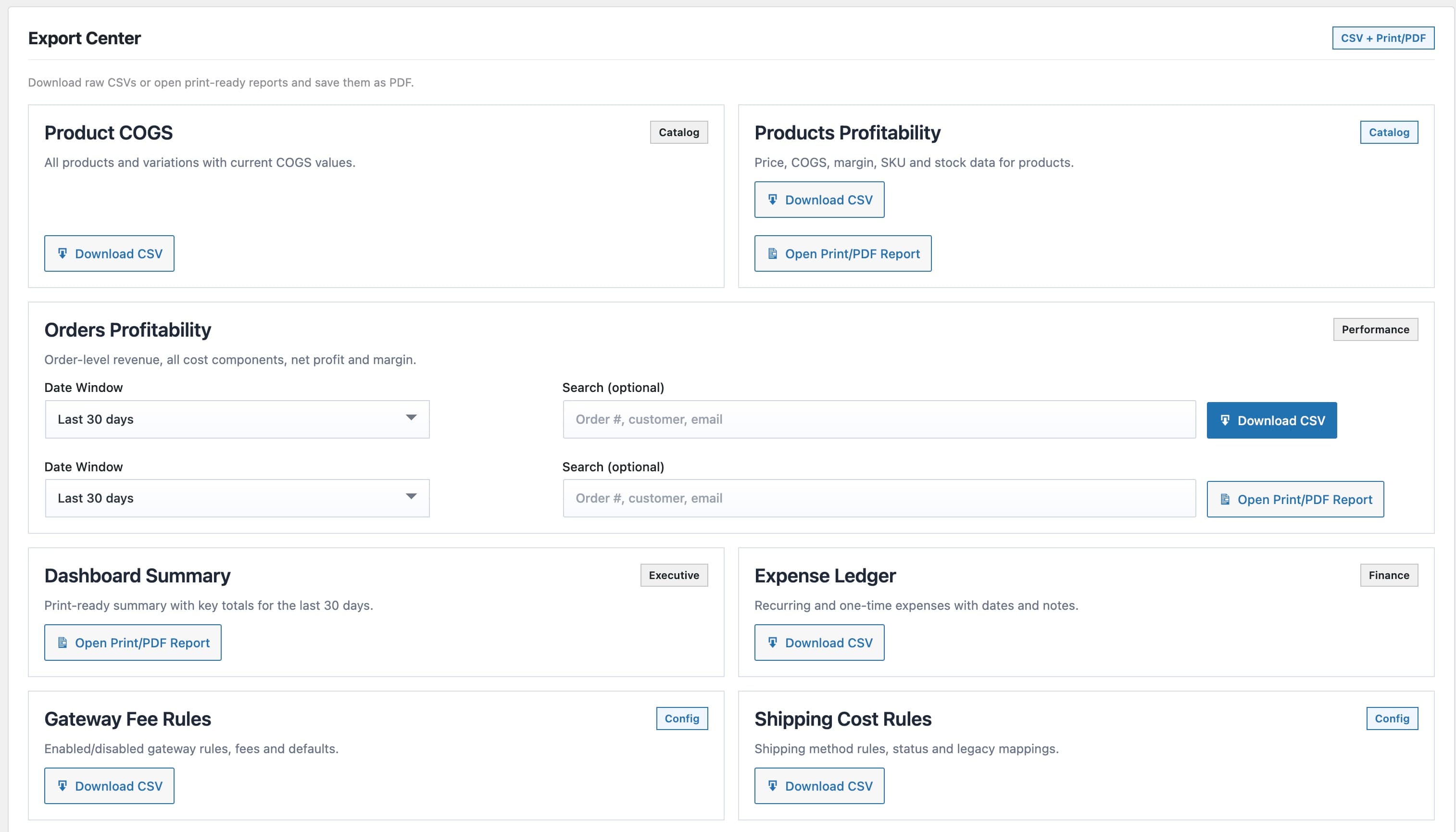
Export Center: CSV and print/PDF options for every report.