Layout types
Reels Playlist, Stories and Reel Pops, what each one looks like on the shop, and when to reach for it.
A layout is a group of reels plus the rules for how and where they are shown. Go to WooCommerce then Smart Reels, open the Layouts tab, choose Add New Layout and pick a type. The type decides which settings you then get, and it cannot be changed afterwards, so it is worth picking deliberately.
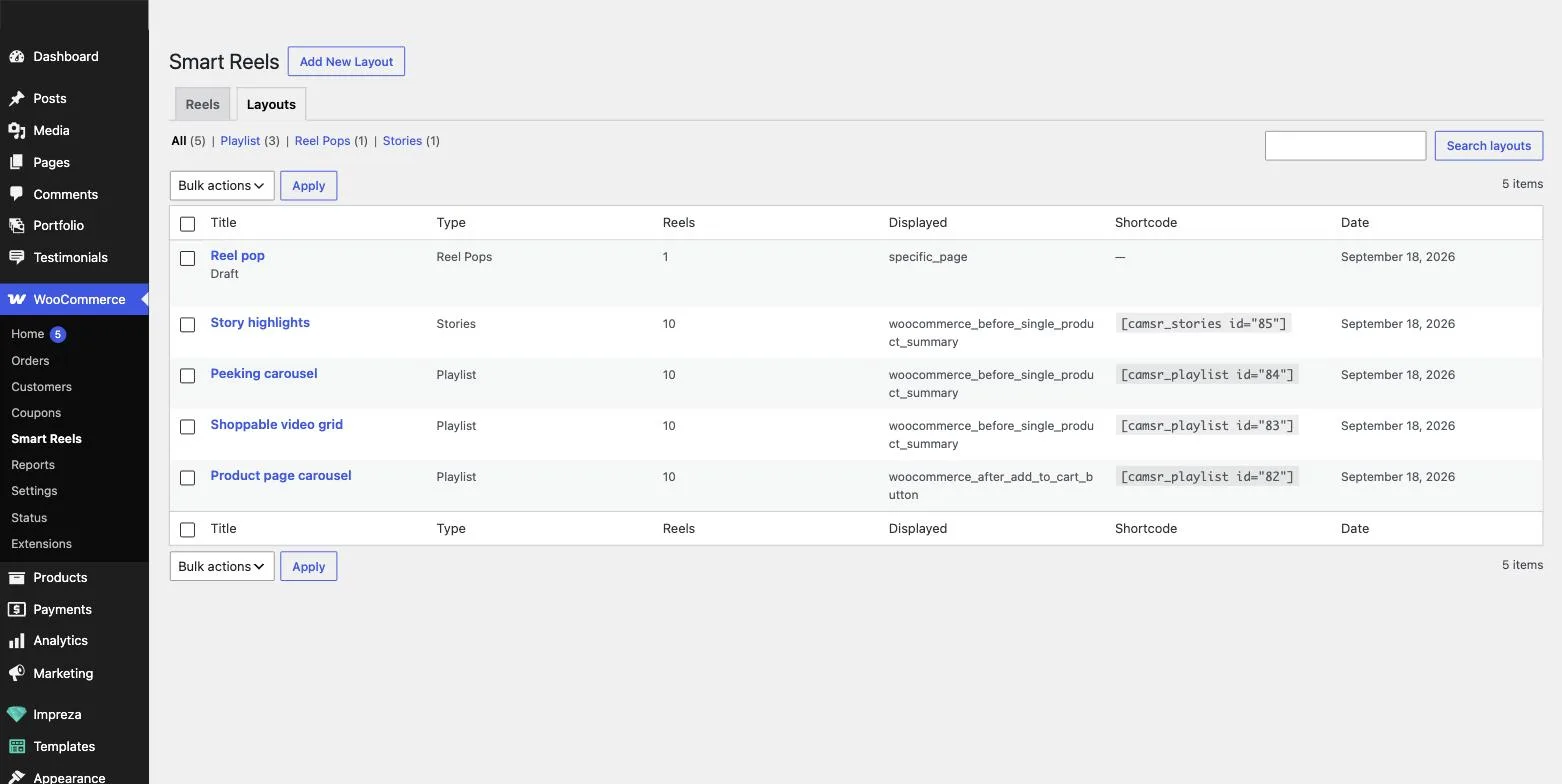
Reels Playlist
Specific reels shown as a grid or a carousel, on a product page or anywhere else in the store. This is the type for a product page gallery, a lookbook or a campaign page, and it is the only type available in the free edition.
Grid view is in both editions. Carousel view is Pro, and so is the peeking variant where the next video shows at the edge of the row.
Stories
Reels as tappable story highlights, in the format shoppers already know from Instagram. Reels are grouped into highlights, each with its own cover image and title. Stories carries its own shortcode, camsr_stories, separate from the playlist one. Pro only.
Reel Pops
A single autoplaying reel as a floating pop-up that follows the shopper around the store, minimised until they open it. Use it for one campaign video rather than a gallery. Pro only.
Attaching reels and ordering them
Under Attach reels to this playlist, choose Attach Reel and select the reels you want. They appear under Attached Reels, where dragging the rows changes the order they play in. That order is what the carousel advances through and what the player swipes between, so it is the running order of the gallery rather than a filing preference.